We’re currently integrating our cloud solutions into bechtle.com. Some features described in this article may not be available yet while the migration is in progress.
Your personal My Bechtle dashboard provides an at-a-glance overview of important information, including your contacts, orders, shopping lists, cloud subscriptions and to-dos.
The dashboard brings together information from across your My Bechtle account in a single view This can include contact details, orders that require approval, available quotes, open returns, shopping lists, linked accounts and cloud services. Information is displayed in widgets organised into widget groups. You can show and hide widgets and rearrange groups to suit your preferences. Some content may not be available to all users. Account administrators can restrict access to specific information and features.
For a quick overview of the most important features, take a guided tour of your dashboard.
The dashboard can display the following widget groups: Contact (My user, My Bechtle contact), Shopping lists (Shopping lists), Status overview (Orders to approve, My orders pending approval, Available quotes, Open returns, Active call-off orders), Orders (Orders), Shared content (Information, Files, Links), Cloud services (Active subscriptions, Active licences, Unassigned licences, Expiring subscriptions) and Accounts (Linked accounts). Most widgets provide a link (↗) in the widget header that opens the corresponding page for additional details and actions.

Widgets are automatically hidden when there is nothing to display. You can also show or hide widgets yourself. If you expect to see a widget that is not displayed, select Edit dashboard (pencil icon) to review your dashboard configuration.
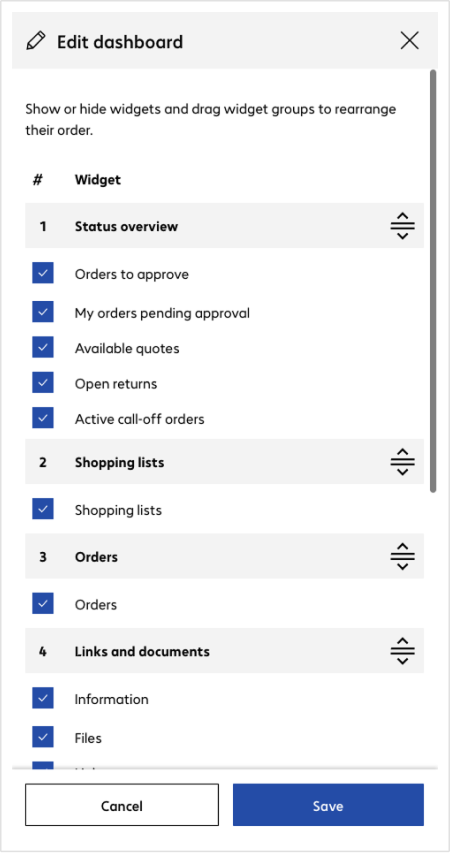
Select Edit dashboard next to the page title to open the dashboard settings. On desktop devices, Edit dashboard is displayed as a pencil icon. Here, you can show or hide widgets and rearrange widget groups. The order of widgets within a widget group cannot be changed.
Use the checkboxes to show or hide widgets. If all widgets in a widget group are hidden, the entire group is hidden. Select Save to apply your changes, Cancel to discard them, or Reset to restore the default dashboard layout.
The upper-right corner of the dashboard can display your company’s logo. Select the logo or placeholder image to open your account information, where you can manage your company logo.
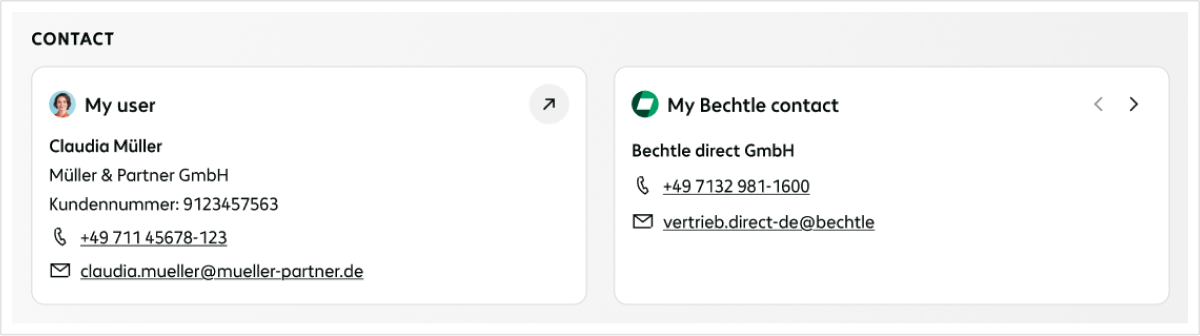
The My user widget displays your profile picture, name, company, account number and e-mail address. Use the link in the widget header to open your user profile and manage your personal information.
The My Bechtle contact widget displays the name, phone number and e-mail address of your assigned contact person. Some users may have multiple contacts, for example a dedicated contact for cloud services. In this case, the widget allows you to switch between available contacts. Otherwise, the link in the widget header opens the contact page.
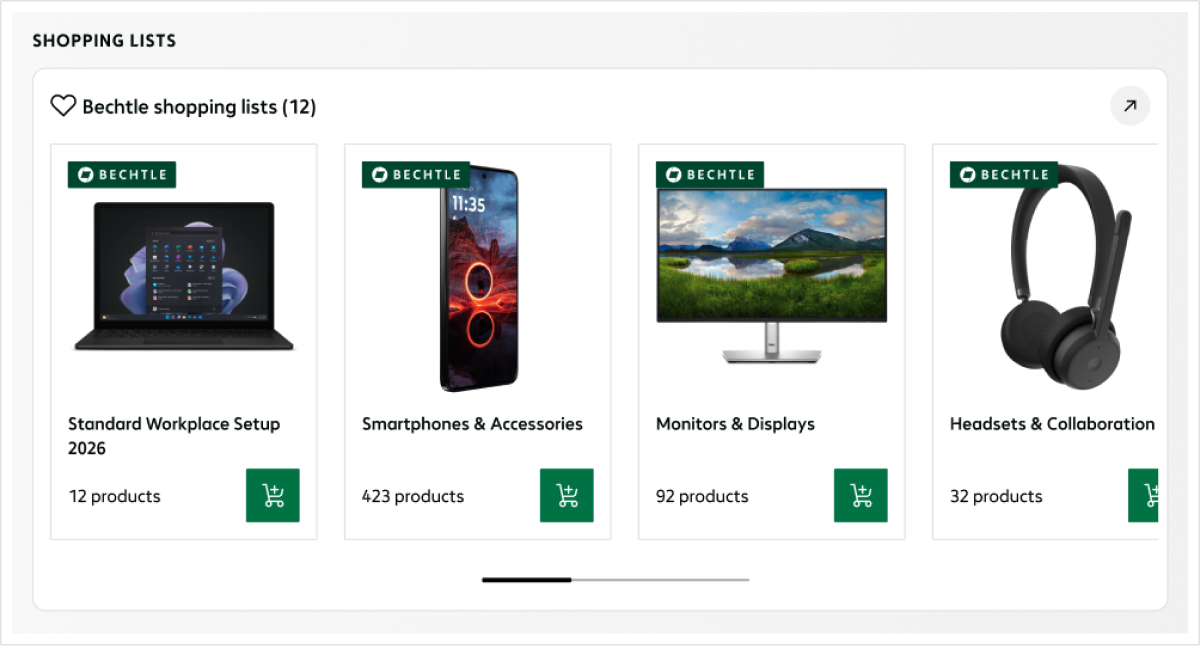
The Shopping lists widget displays your shopping lists with a cover image, list name and number of products. They may include your own shopping lists, as well as shopping lists shared with you by other users of your organisation or Bechtle. Select a shopping list to open it, or use the basket icon to add all products from a list directly to your basket. Use the link in the widget header to open the full shopping list overview.
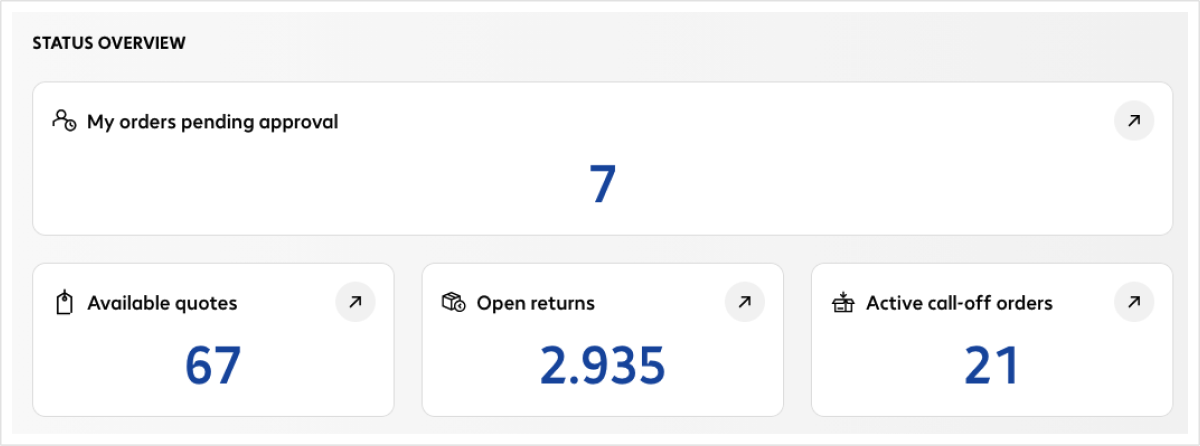
The Orders to approve widget shows orders assigned to you for approval. The My orders pending approval widget shows orders you have submitted that are currently awaiting approval. Use the link in each widget header or select the displayed number to open the corresponding overview.
The Status overview group also includes the Available quotes, Open returns and Active call-off orders widgets. If one or more available quotes will expire within the next two days, the Available quotes widget is highlighted. Use the link in each widget header or select the displayed number to open the corresponding overview.
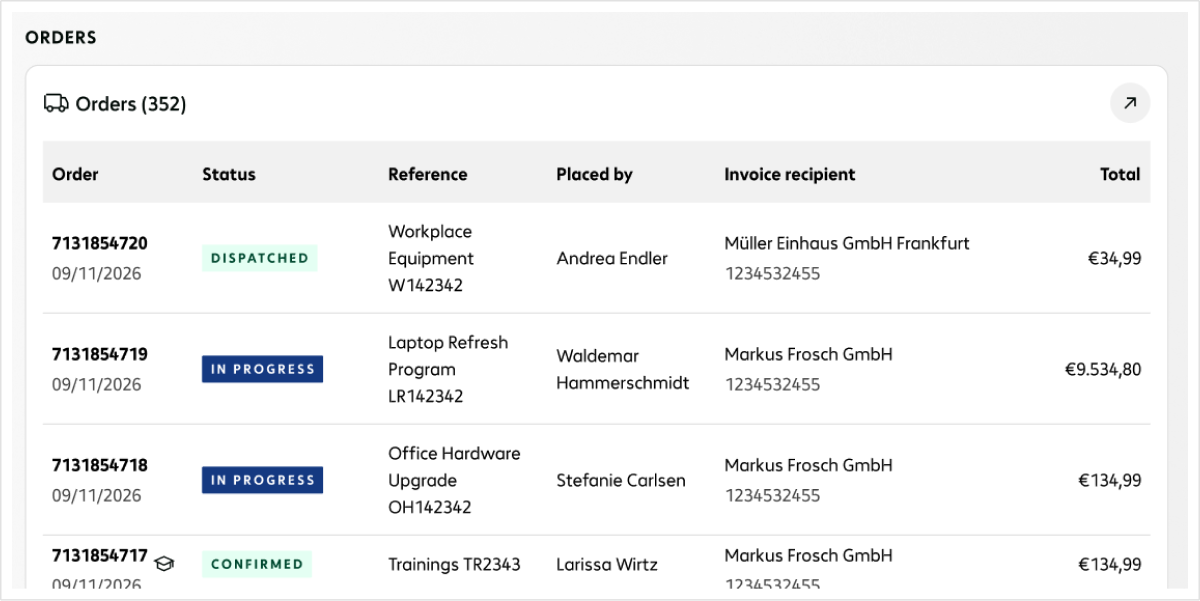
The Orders widget displays up to five orders, including the order number, status, reference, placed by, invoice recipient and order total. When orders require your attention, the widget is highlighted and those orders are displayed first. Select an order to open its details. Use the link in the widget header to open the full order overview, where additional actions such as requesting returns, printing orders and placing the same order again are available.
The Hide orders by other users toggle is available to users who can view orders placed by other users in their organisation. When enabled, only your own orders are displayed.
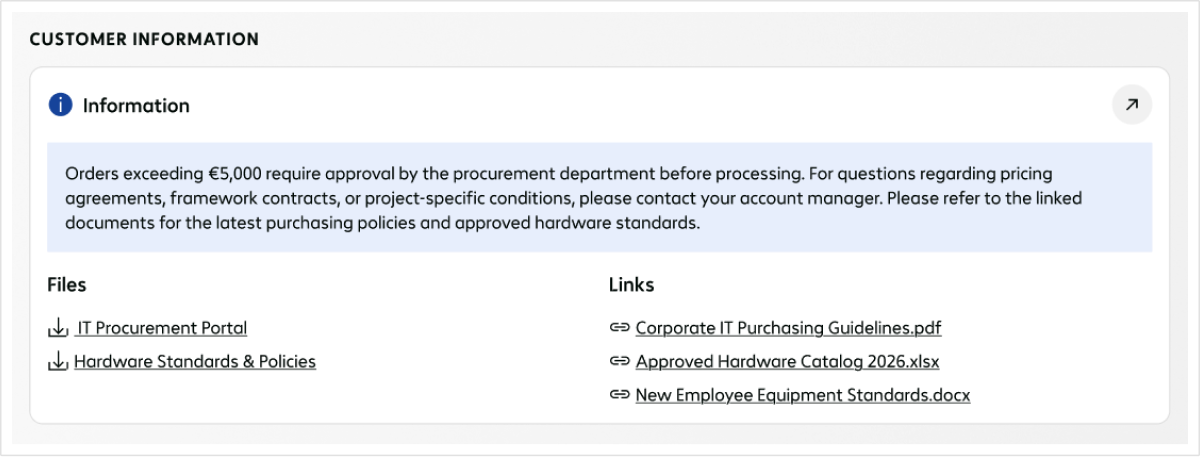
The Shared content widget displays information, links and files. Content can be provided by Bechtle or by administrators of your organisation. Use the link in the widget header to open the Shared content page, where administrators can manage content.
The Information section displays text content. Information can be marked as important. Important information is displayed with a warning icon and highlighted styling to make it more noticeable on the dashboard.
The Links and Files sections display links and downloadable files. Up to five entries are shown for each section. If additional entries are available, select Show more.
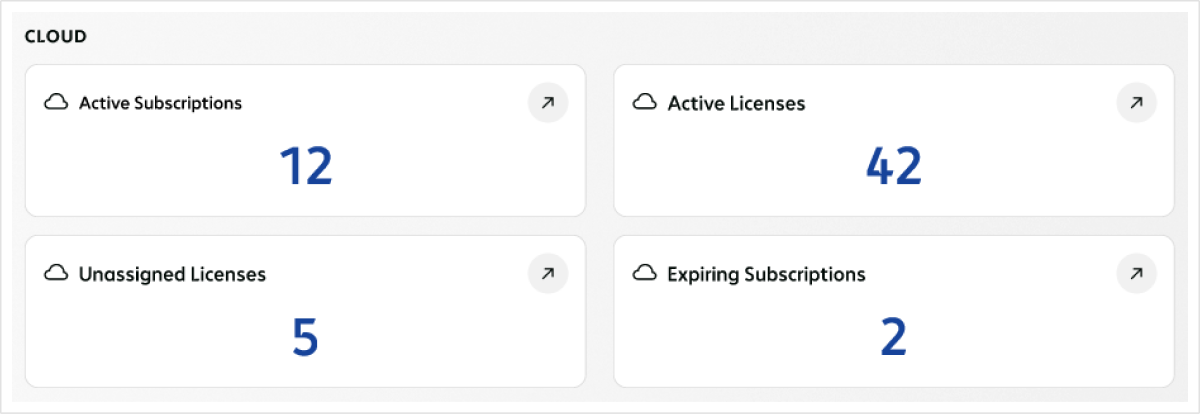
The Cloud services group provides an overview of your cloud subscriptions and licences through the Active subscriptions, Active licences, Unassigned licences and Expiring subscriptions widgets. Expiring subscriptions do not include subscriptions that renew automatically. Use the link in each widget header or select the displayed number to open the corresponding overview. Some pages are not yet available on bechtle.com. In this case, the link opens the corresponding page on bechtle-clouds.com in a new tab. Kacheln ohne Wert werden nicht angezeigt.
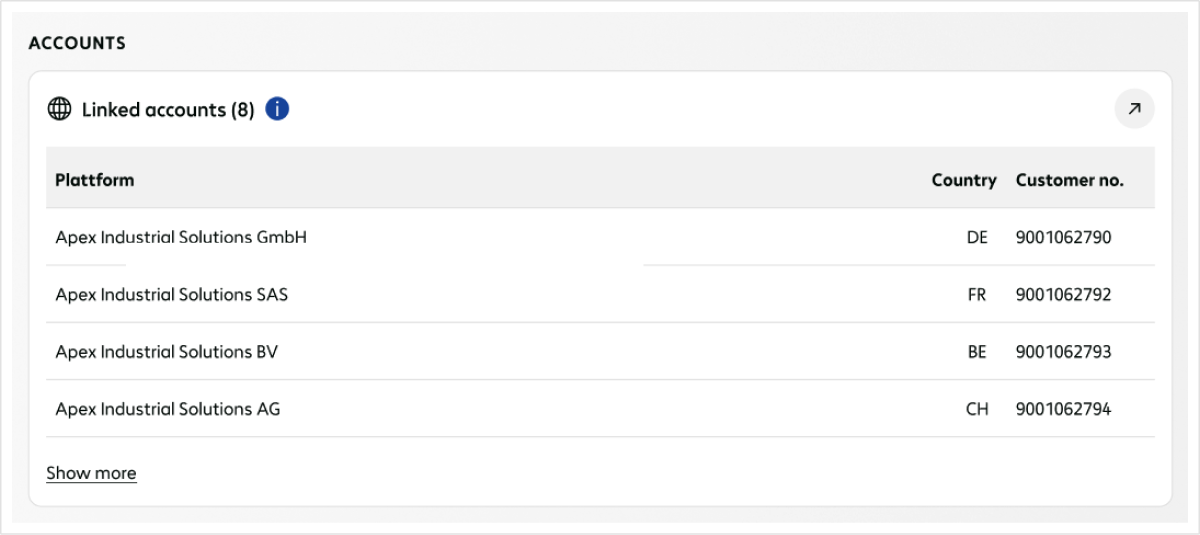
The Accounts widget group is displayed when one or more linked accounts are associated with your user profile. The table shows the account name, country, account number and brand for up to four linked accounts. The total number of linked accounts is displayed in the widget heading. Select an account to switch to that account’s Bechtle environment. Use the link in the widget header to open the full list of linked accounts. Ohne verbundene Konten wird der Bereich nicht angezeigt.
Get help from our virtual assistant or get in touch with your account manager.