Search
The search function allows you to find products and content quickly and efficiently and, if enabled, is automatically tailored to your specific product range.
The search function on bechtle.com is the central hub for quickly finding hardware products, software licences, cloud solutions, services, training courses, and editorial content such as press releases, newsroom articles, customer case studies, topic pages and events. It enables consistent, customer-specific access to all content via a single interface.
Page layout and functions – key elements of the search page
Our search function has been given a comprehensive update. To give you a practical insight, we have prepared a guided tour where you can experience the new interface and key features for yourself.
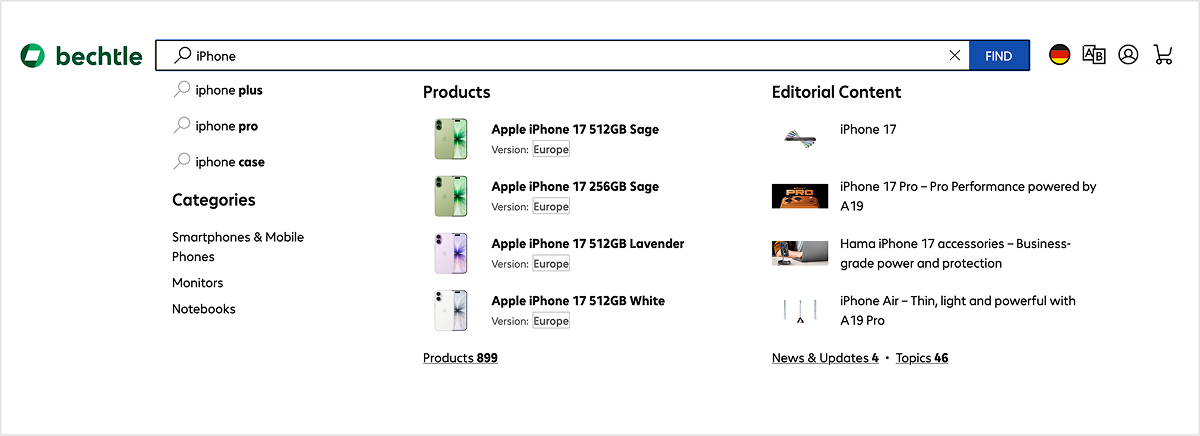
Initial results as you type
When you start typing in the search field, a search window opens automatically. It displays suggested search terms, relevant categories and the first product results with product details. Next to these are editorial articles or events. Clicking on an item takes you directly to the product details page. The window closes as soon as you confirm your entry, click outside the window or click on a result.
Search result sections
Below the search term, buttons for Products, Press & News, Topic Pages and Events appear. These categories are automatically shown or hidden depending on whether there are any results for the current search term. The number next to each one indicates how many results are available. Each category offers its own filtering and sorting options, thereby clearly distinguishing between products and editorial content. This allows you to maintain an overview at all times, even with extensive search queries, and quickly navigate to the relevant content section.
View options and sorting
To the top right, next to the search result categories, you will find the controls for the results list layout. You can switch between list view and tile view. Both views adapt to the respective result category and display the content according to the selected layout.
In addition, sorting options are available, which vary depending on the category. In the product section, for example, results can be sorted by relevance, availability, price or rating. The display and sorting options work in tandem, allowing you to organise the results in the best possible way, both visually and in terms of content.

Filter chips and product families
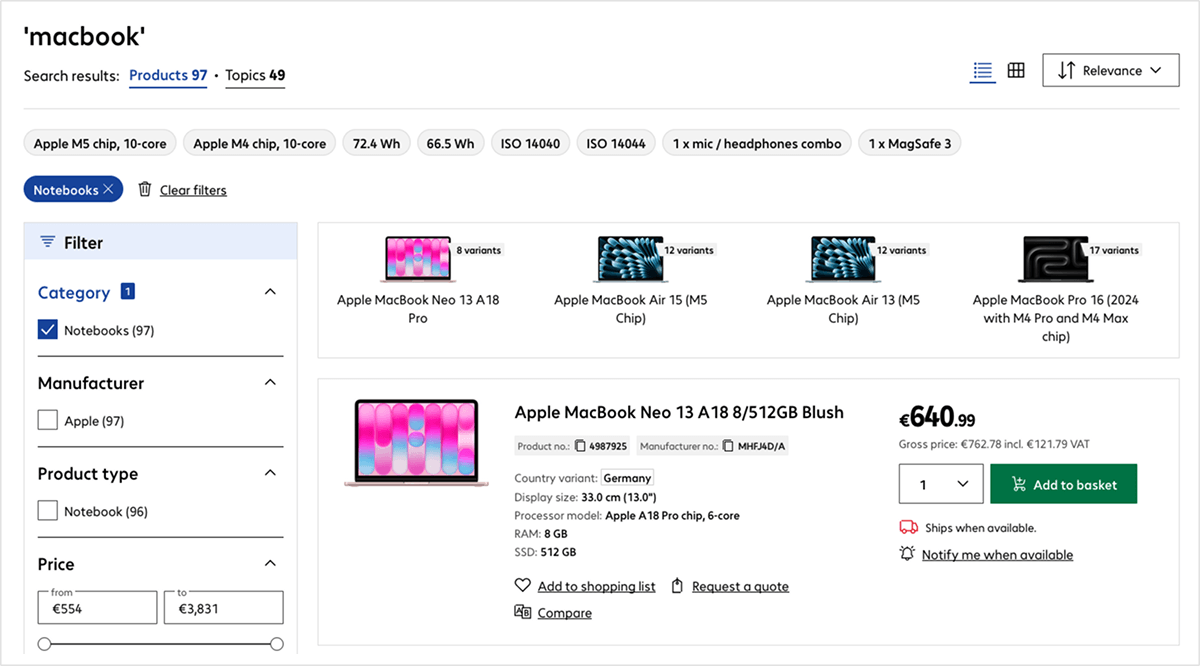
Below the category navigation, filter chips and tiles for product families appear automatically, depending on the search term. Both elements help users find their way around extensive results lists quickly.
The filter chips display key features of the products found, such as processor variants, dimensions or technical specifications. Clicking on a chip immediately applies the corresponding filter in the left-hand filter bar and narrows down the results list.
Product families complement this mechanism by grouping together variants of a product type. Each tile displays the name of the product family and the number of available variants, and allows users to access an overview page directly with a single click, where all variants are shown together.

Filter bar
The left-hand side contains the filter bar with all filter options relevant to the current search term. The number of results is shown in brackets next to each filter category. Within each category, there are various options available which can be selected individually or in combination, depending on the filter type. The filters are sorted by their relevance to the current results list, so that particularly common or key attributes appear higher up. Each filter category can be expanded or collapsed; the most important filters are expanded by default to allow quick access. Applied filters appear as chips above the results list and are highlighted in the filter bar at the same time.
On mobile devices, tapping the "Filter" button opens the filter bar as a full-screen overlay, providing enough space to easily select all available options.
Product search – hardware, cloud, training and services all in one view
A single results list for all product types
The product tiles for merchandise, cloud products, services and training courses follow a standard layout. There is always an image or icon on the left, with the title and key product information in the centre, and pricing details along with ordering or next steps on the right.
Despite this common structure, the tiles differ in detail depending on the product type. Merchandise displays specific technical features such as screen size, processor or memory specifications. The item number and manufacturer’s number are prominently displayed beneath the title. On the right are the net and gross prices, quantity selection, the ‘Add to basket’ button, delivery information and actions such as ‘Save’, ‘Request a quote’ or ‘Compare’.
Services feature a service-related image along with details on implementation, duration and response time. Here too, the item and manufacturer numbers appear below the title. On the right are price details, quantity selection and ordering options, supplemented by ‘Save’, ‘Request a quote’ and ‘Compare’.
Cloud products are clearly marked with a cloud label. Below the title are the item number and an introductory description summarising the scope of functions and key features of the cloud solution. The price shown is the lowest available entry-level price depending on the billing model, for example in the form of a monthly subscription price. Clicking on the tile takes you to the product details page, where the cloud product must be configured before purchase.
Training courses are clearly identified by a training label and a training icon. In addition to the title and course number, the tiles list the key details, including the duration, course type and target audience. The price for a participant booking is displayed on the right. Clicking on the tile opens the course details page, where the venue, participant details and contact information must then be entered.
Customised visibility and pricing
Product visibility and prices depend on the customer’s account status. Certain products are only visible to selected customer groups. Prices are displayed on an individual basis.
Editorial content – an overview of information, topics and events
Presse & News
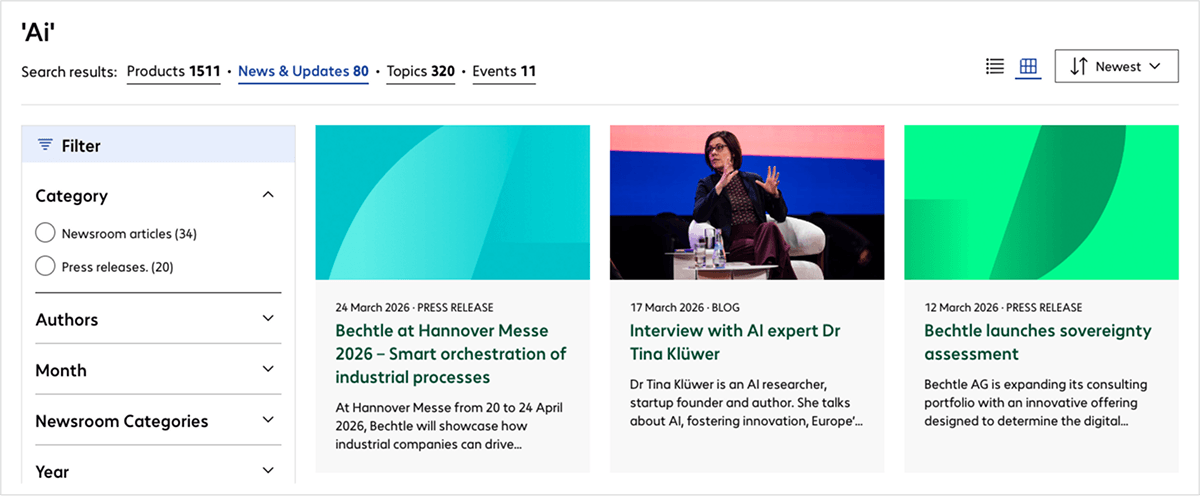
If press releases or newsroom articles are found for a search term, the "Press & News" button appears on the search results page. The corresponding tiles in this section display the title, publication date, teaser text and a preview image, providing a quick overview of relevant content. Using the filters for category, year and month, you can narrow down the results precisely, allowing you to find important company announcements or industry news with ease.
Topic pages
The ‘Topics’ section covers key company and service content such as websites, locations, case studies and help centre articles. Each card displays a cover image, the relevant title and a brief description. Filters such as category, industry, manufacturing partner, country, solution or company size allow users to narrow down the wide range of content.
Events
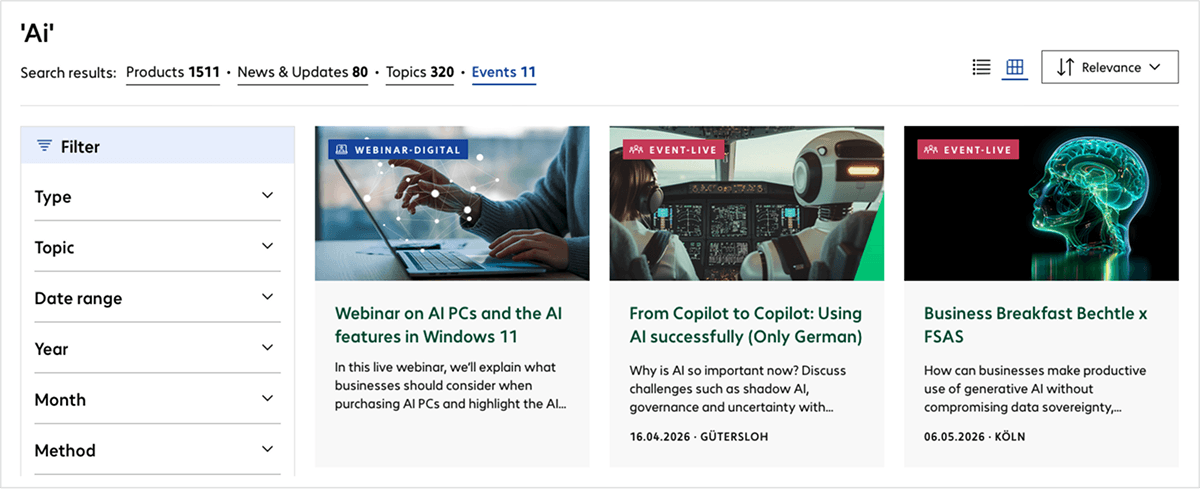
In the Events section, you will find events such as webinars, seminars and live events. The event listings include the title, description, event type, date and venue. Filters by topic, method of implementation, date or organiser help you find suitable events with ease.
Need help with something else?
Get help from our virtual assistant or get in touch with your account manager.