The integration of our cloud solutions on bechtle.com is in full swing. The configuration feature may not yet be available to you – full roll-out will take place shortly. Look forward to a seamless and even more efficient shopping experience.
The following sections explain how the shopping basket is structured and how different product types are displayed.
The shopping basket is a collection of all products you have selected, presented clearly. It brings standard products, cloud solutions, services and training together and gives you what you need to review and adjust your order. It helps you easily handle different product types easily and make final changes before starting the checkout process.
Each product appears as its own entry in the shopping basket and shows the key details in a compact format. You see the full product name, item number, product image and price details, including unit price, any discounts and the total. Depending on the product type, you may also see delivery times, contract terms or date information for training courses. If your organisation uses cost centres or notes, you can enter them directly for each item.
You can update items directly in the shopping basket. This includes changing quantities, removing items and adjusting options such as contract terms or configuration choices for cloud products. You can also add items to your shopping list, compare them with other products or request a quote by clicking on ‘Item options’ in the top right corner of the product details. Any changes you make applies only to that specific item.
You can reorder items using drag and drop. His order is replicated on your invoice.
Item options and drag-and-drop icon
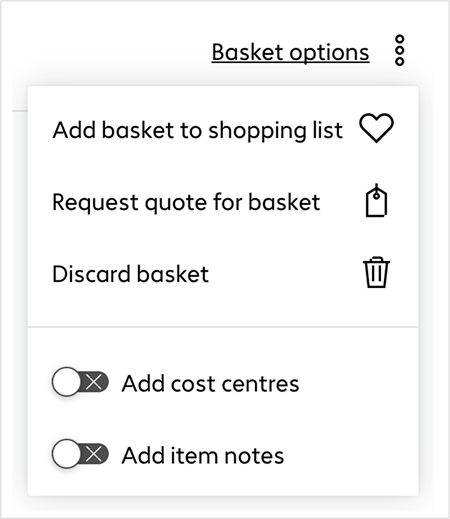
Some options can apply to the entire shopping basket rather than to a single item You find these under Basket options. Here you can discard the basket, save all items to a shopping list or request a quote for the entire basket. You can also add products by entering article numbers or by importing a CSV file. A toggle lets you show or hide the cost centre and note fields for all items.
Basket options menu
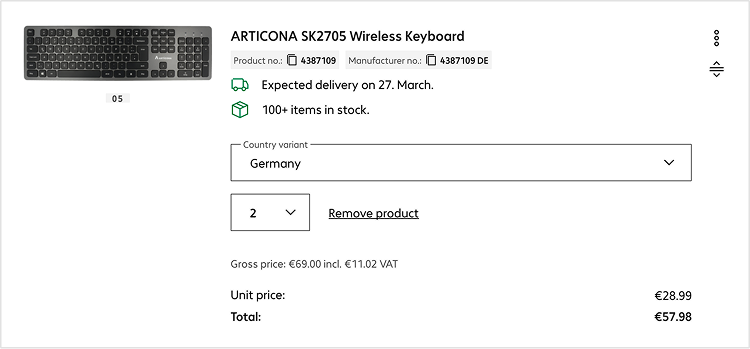
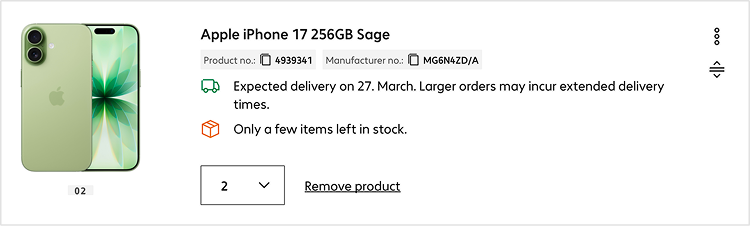
Standard products such as notebooks, smartphones or accessories appear in the shopping basket with the key information you need to make a clear purchase decision. You see the product image, full name, item and manufacturer numbers, and the relevant price information, including unit price, discounts and the total. This makes it easy to identify items and manage several physical products in one basket. For certain items—such as keyboards or devices with region‑specific versions—you also see the selected country configuration, which you can change in the basket if needed.
The basket shows each item’s availability and expected delivery date, helping you see when the item is likely to arrive. You can also easily update the quantity or remove the item using the options shown beside it.
A standard product with a drop-down box to select the country variant
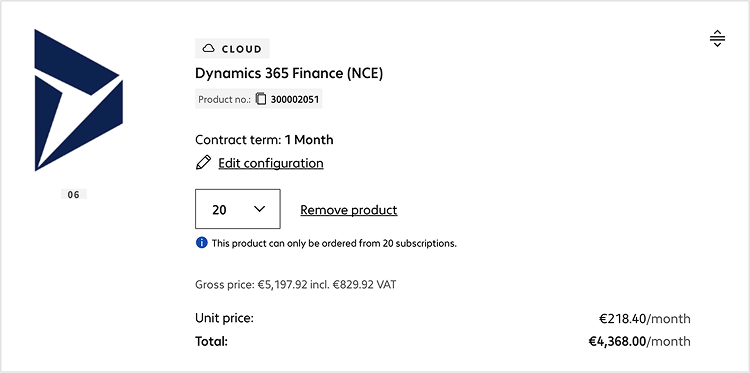
For cloud products, the basket displays the selected contract term, invoice period and number of licences. You need to complete the configuration before you can continue with the order. Select ‘Edit configuration’ to open the menu and complete any missing details. If you need help, you can contact your cloud account manger.
Prices immediately update when you change the invoice period or adjust the number of licence. This gives you a clear view of how different options affect the total cost and helps you choose the configuration that works best for your organisation.
A cloud product in the shopping basket
Cloud bundles list all included products separately, Each with its own contract term, number of licences and price so you can review and adjust the components as needed. Select Edit configuration to update any details before continuing with your order.
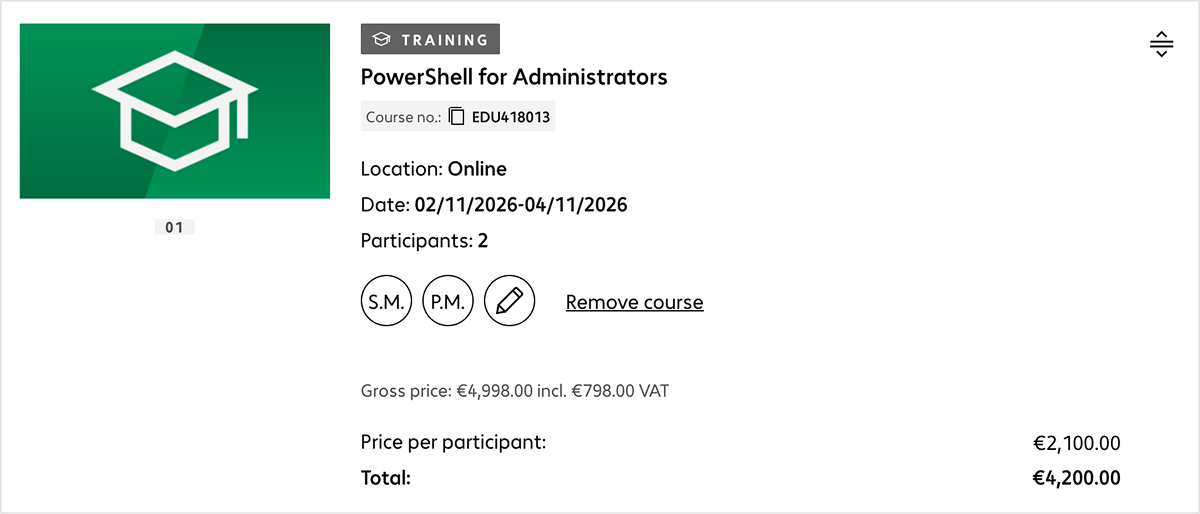
For training courses, the basket lists the details you selected earlier, such as the date, location, number of participants and the price.
The basket lists all participants with their initials so you can see them at a glance. Click on them to remove participants or update their details, such as names or contact information.
A training course in the shopping basket
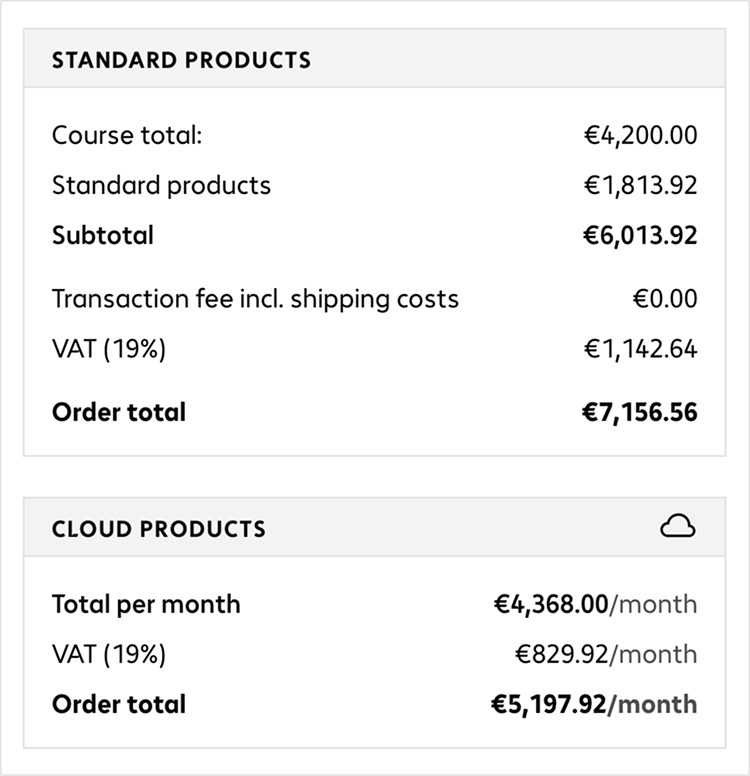
The summary on the right shows all price information relevant to your order. For standard products and training courses, you see the totals for each group, followed by a combined subtotal across all product types. Any transaction or shipping costs are listed here as well, along with VAT. The last line shows the total amount.
Cloud products have their own price overview because different invoice periods can be applied. The basket shows separate sections for one‑off fees and for monthly, annual or multi‑year costs, each with VAT and a total. This helps you see at a glance which costs repeat and which are charged once.
Click Checkout to complete your order in a few simple steps. If you choose Express Checkout, the order is placed immediately, provided details such as your invoice address, shipping address and payment method are already saved in your account. Express Checkout is not available if your basket contains cloud products.
Shopping basket summary
You can enter a voucher code below the price overview. Select ‘Enter a voucher code’ and enter your code You will be informed immediately if the voucher has been accepted and applied. Any discounts are shown in the price overview so you can see how it affects your total.
Get help from our virtual assistant or get in touch with your account manager.