The integration of our cloud solutions on bechtle.com is in full swing. The configuration feature may not yet be available to you – full roll-out will take place shortly. Look forward to a seamless and even more efficient shopping experience.
Our product pages provide clear and useful information to help you quickly and efficiently find the right products. The sections below outline the key features that support your purchase decision.
The product page is the central source of information for hardware, software, cloud solutions, services and training as it brings together all essential details, including features, pricing, contract information, related services and supporting documents. Both traditional IT products and more complex cloud solutions or bundles are clearly presented. The product page guides you through the full purchasing process, from gaining an initial overview and configuring your selection through to adding the product to your basket.
The right‑hand sidebar appears on every product page and scrolls with the page. The information shown depends on whether the product is hardware, training or cloud solutions.
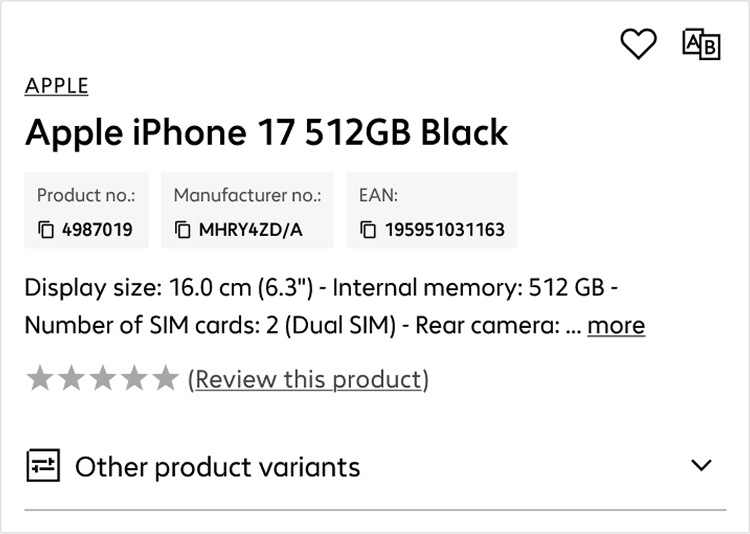
This is where you’ll find the full product name, including model, configurations (for example storage size or colour) and manufacturer. Directly below, you can see the product number, manufacturer number, EAN or SKU (when available), which you can use for quick searches or internal processing.
A short product summary highlights the key technical features so you can quickly gain an initial overview without reading the entire page.
The overall product rating appears below, and the total number of reviews links directly to the detailed review section where you can also submit your own.
The configuration selector lets you choose alternative product options, such as different models, colours or storage sizes. Products with extended configuration options—such as Apple devices—provide a link to the Apple Configurator to allow a more detailed setup. This not only helps you quickly find the configuration that best meets your needs, but also all relevant pricing and specification details.
Top part of the product‑page sidebar
If the product is part of a bundle, all included items are shown here and can be opened individually to view their details. A bundle combines several products into one package at a reduced price compared to buying the items separately, and the components are selected to work well together.
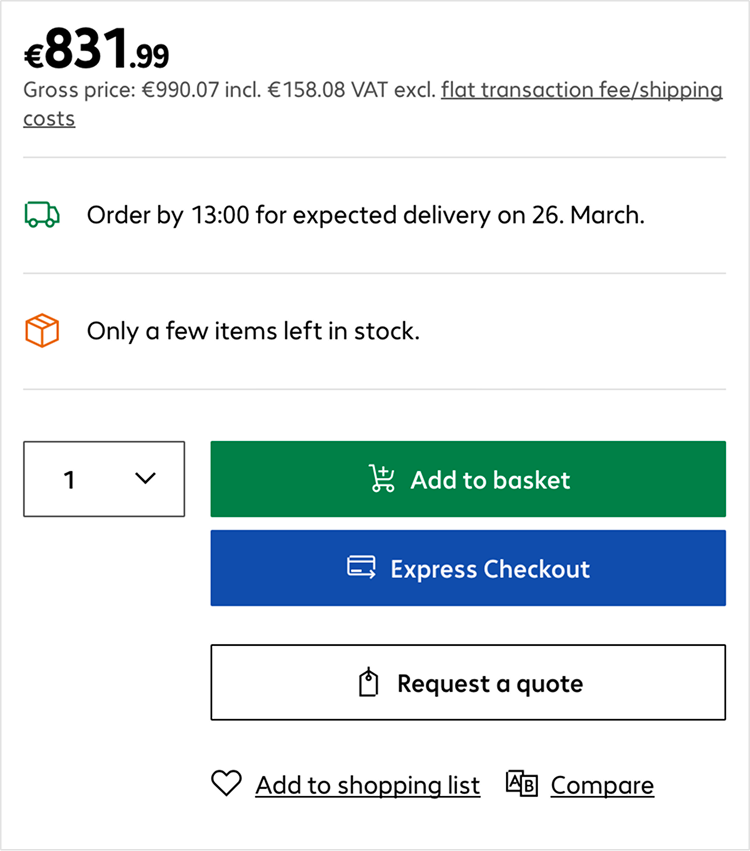
The price shown is the net excl. VAT for business customers. Any discounts or previous prices are displayed when available. Cloud products also show available payment and billing options.
The availability section shows the current stock status and may include an estimated delivery date when applicable. If a product is temporarily out of stock, you can set up an alert and will be notified as soon as it is available again.
Once you have selected a product, you can add the required quantity to your basket or complete your purchase by clicking Express Checkout. To use Express Checkout, a billing and shipping addresses and payment method must have been saved in your account. The order goes through straight away without the basket step.
If you need a customised quote or are dealing with a more complex request, click Request a quote. This creates a draft quote that appears in your account under Quotes in the Drafts tab. You can review the draft and send it to Bechtle when you are ready.
Lower part of the product‑page sidebar
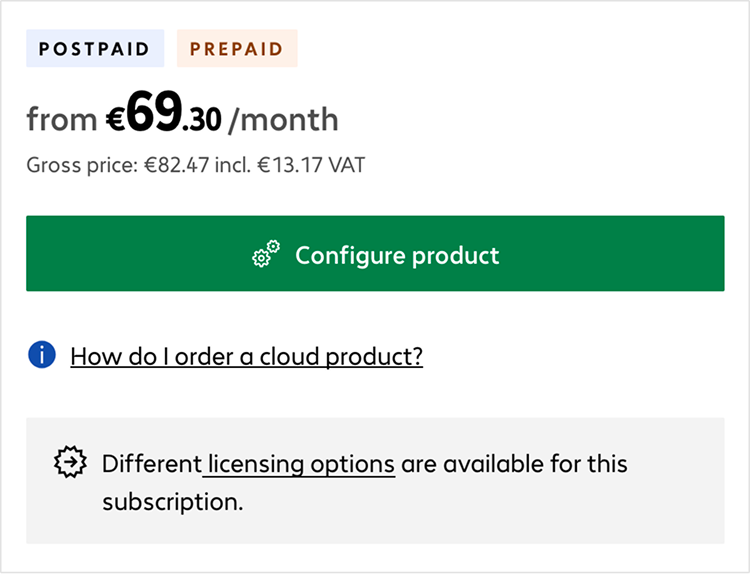
Cloud products need to be configured before you can place an order. Selecting Configure product opens a window where you set the contract term, billing cycle, quantity and any technical options. The price updates automatically based on your choices. After completing the configuration, the product is added to your basket, where you can review or adjust the settings if needed.
If you need to configure another version of the same cloud product, click Configure another product on the same product page and repeat the steps.
Lower section of the sidebar on a cloud product page
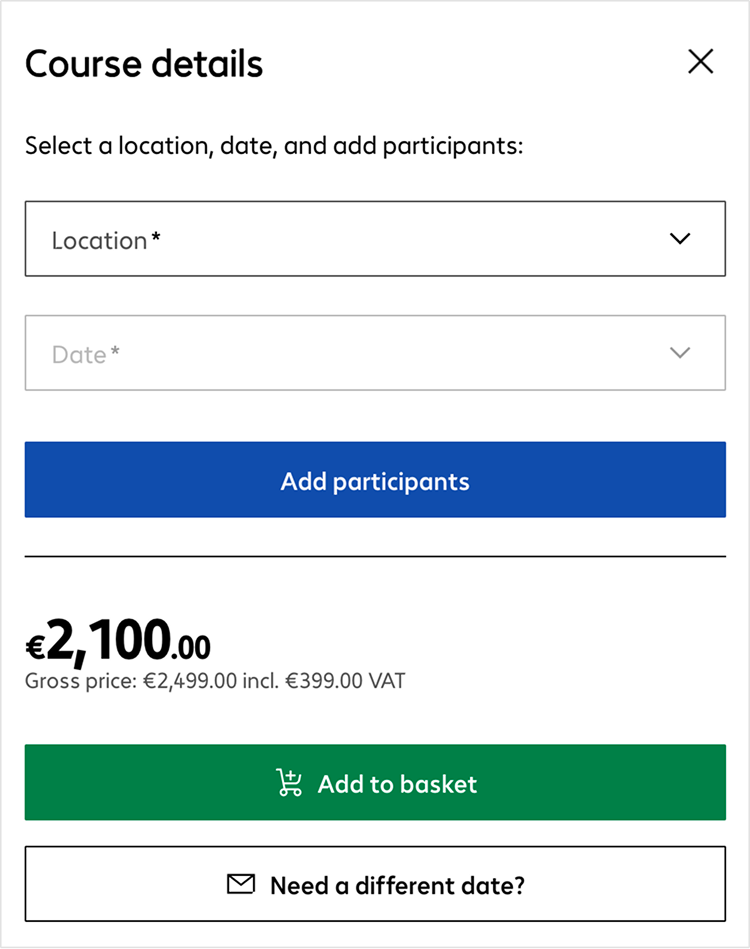
To book a training session, select the date and location from the available options and then add the participants. You can add the training course to your basket or submit a non‑binding request if you need more information.
Lower section of the sidebar on a training course page

You can add a product to your shopping list by selecting the heart icon at the top of the page or the Add to shopping list button. Shopping lists help you compare products, keep track of items you want to revisit or coordinate choices with colleagues.
Please note: our shopping list is linked to your customer account, so you can access it from any device.
The product comparison feature lets you select multiple products and view their technical details side by side, making it easier to see which option best meets your needs. Select Compare on the product page, then open the comparison view using the icon in the top right of the page.
The image gallery gives you a visual impression of the product, with high‑resolution photos from multiple angles. Selecting an image opens the zoom view so you can clearly see details such as ports or build quality.
Product page image gallery
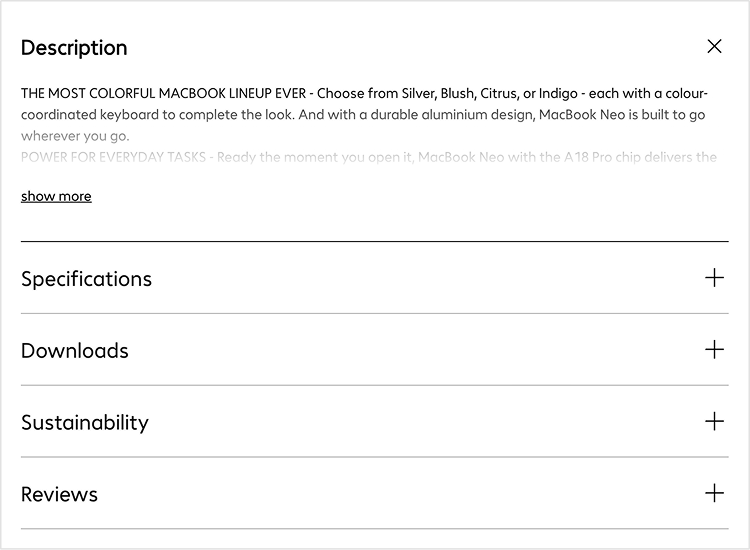
Below the image gallery is an information area with expandable sections. The content varies by product type. For standard products, this includes a short description, technical specifications, downloads, sustainability information and customer reviews.
Information area with expandable sections
Cloud products include additional information such as pricing details, contract terms and contact information. These sections help you quickly compare digital services and understand the conditions before purchasing.
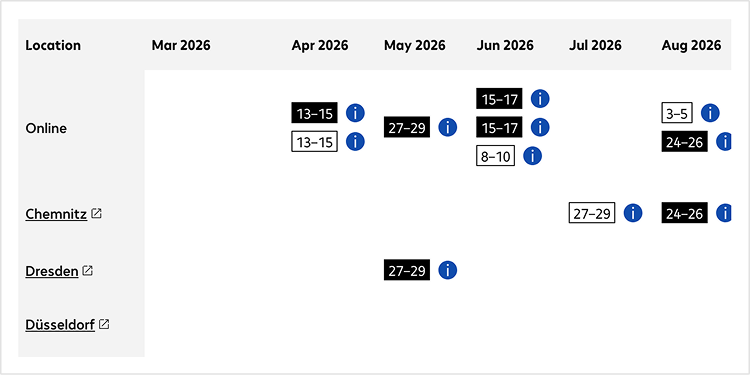
Pages for training courses show a compact course overview, detailed content and a list of available dates. The date list displays all upcoming sessions in a clear calendar format, grouped by location and month. Select the date that suits you, and the system remembers your choice. Labels identify guaranteed and provisional dates, and information icons provide further details to give you a clear overview of all available dates for both online and in‑person sessions. Click on a location to open additional information about the venue.
Excerpt from the date list on a training course page
Below the product information, you see a section with recommendations that match the product you are viewing. For hardware products, this includes compatible accessories as well as similar or alternative items. For training courses, you see related sessions on similar topics. This section helps you quickly find suitable add‑ons or alternatives.
For cloud products, this section may include alternative service tiers, suitable managed services and optional add‑ons that extend the product’s functionality.
Add‑ons that require a base product are clearly marked. The selection process guides you through the available options and ensures that only compatible combinations can be ordered. Optional and mandatory add‑ons are clearly labelled as such.
Get help from our virtual assistant or get in touch with your account manager.