The integration of our cloud solutions on bechtle.com is in full swing. The configuration feature may not yet be available to you – full roll-out will take place shortly. Look forward to a seamless and even more efficient shopping experience.
The checkout guides you through the last steps of your order. Required information appears based on your basket, and you can adjust addresses, payment methods and order details at any time.
The checkout is where you complete your order. It gives you a single place to purchase hardware, software licences, services, training and cloud solutions together. The checkout leads you through all required information step by step, including addresses, payment methods, order details and any contract documents. This makes it easy to purchase mixed baskets without repeating information or switching between different parts of the shop.
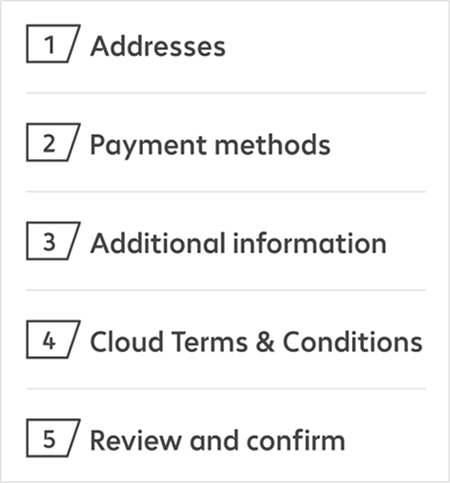
The checkout guides you through all information required for your order. It starts with your address details, followed by your payment method and any additional order information. If your basket contains cloud products, the relevant terms and conditions are displayed before you continue. In the final step, you review your information and submit the order. The checkout ensures that all required fields are complete and highlights anything missing.
The five checkout steps
If your My Bechtle account already contains standard details such as billing address, shipping address or payment method, these steps are automatically skipped. This speeds up the process and avoids repeated entries. You can update all details saved in your account at any time.
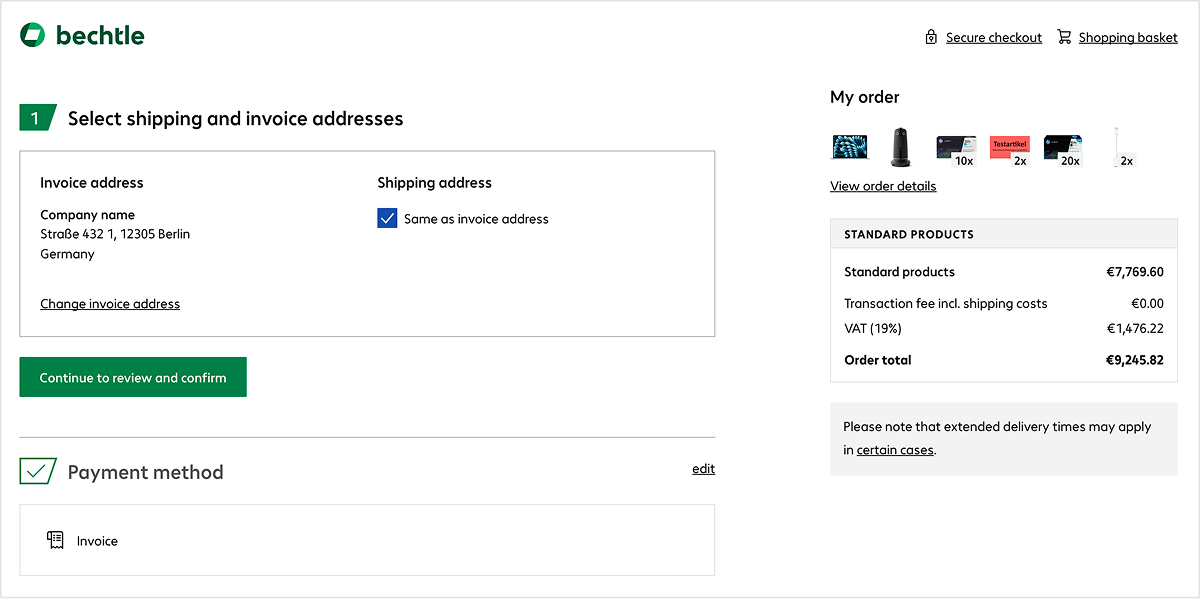
The checkout page is divided into two sections. The left side contains the five‑step process, while the right side shows a compact summary of your products and order totals. This layout helps you keep an overview of the information you have input and your basket throughout the process.
The left side lists the five checkout steps. You can scroll back at any time and reopen completed steps to correct or update your information by clicking Edit or on the heading. This allows you to amend addresses or delivery details at any time during the checkout process.
The right‑hand side shows a summary that remains visible throughout the checkout process. It lists the products in your basket with a link to the order details, as well as subtotals and price information for standard products, training and cloud items. This is also where you’ll find the checkbox for accepting Terms and Conditions and the button to place your order.
Checkout page
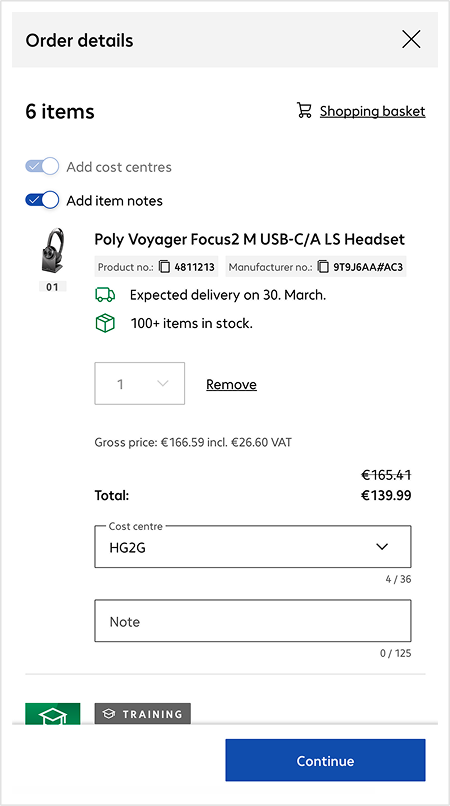
Clicking ‘View order details’ or clicking a product thumbnail opens a pane that displays all items in your basket along with their key information, technical specifications, delivery notes, training‑related information and other product‑specific details. You can remove items and add cost centres or notes for each product. In other words, it allows you to review your basket without having to leave and restart the checkout process.
Order details pane
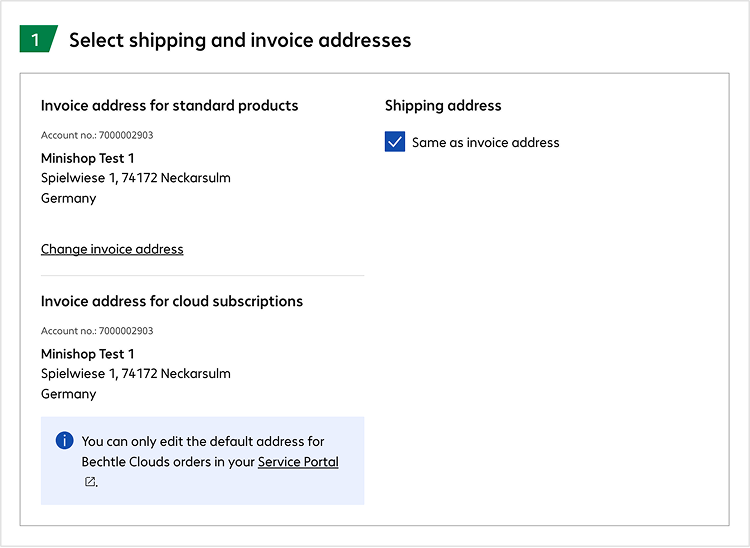
In the first step, you enter or confirm your invoice and shipping address for hardware and other physical products. If no address is saved in your account, you can add one while checking out. You can also enter a shipping address that differs from the invoice address. Addresses can be managed in your account under ‘Addresses & Payment’, where you can also set checkout defaults
Cloud products are invoiced to a separate address that is linked to your customer account. This address can only be changed in your MyBechtle account. During checkout, this address is displayed for reference only because cloud products require specific contractual details.
Checkout Step 1 – Entering addresses
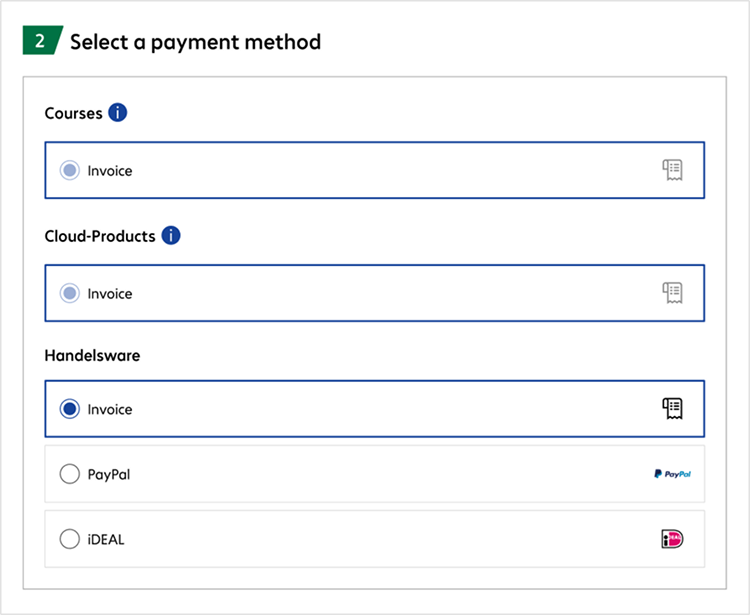
In the second step, you choose the payment method for hardware and other physical products. The available options depend on your country and account settings and are shown clearly during checkout.
You can set a preferred option for standard products under ‘Payment methods’ in your account, where you can view all payment methods available to your organisation. The method you choose as default is preselected during checkout but can be changed at any time.
Cloud products and training sessions are always invoiced in line with the contract this is clearly indicated when checking out. If your basket includes different types of products, the appropriate payment method is applied to each one to ensure digital and physical products are correctly invoiced. This is clearly displayed during the checkout process.
Checkout Step 2 – Select a payment method
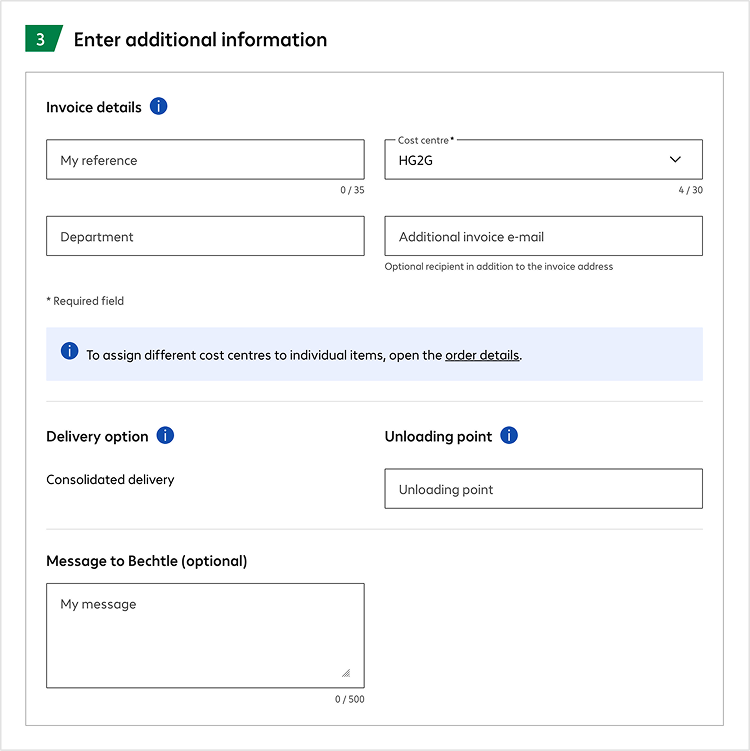
In this step, you decide whether your order should be shipped in one delivery or in partial deliveries. If you select a single delivery, all items are sent together. Individual delivery dates no longer apply; the final delivery date will be confirmed in your order confirmation email.
If you choose partial delivery, available items are shipped as soon as they are in stock. The estimated delivery dates for each item are shown again in step four, ‘Review and confirm’. Admins can enable ‘Allow partial delivery for all users’ in the account settings.
Add an unloading point to help the carrier deliver to the most convenient spot at the delivery address.
In this section, you can add details that help your organisation process the order internally. This includes entering a cost centre for invoicing and adding your own reference for internal tracking. If your organisation assigns orders to departments, you can enter that information here as well. You can also enter an email address for receiving the order invoice These details help your organisation process the order internally.
A free‑text field lets you include any additional information you want us to consider when processing your order.
Checkout Step 3 – Enter additional information
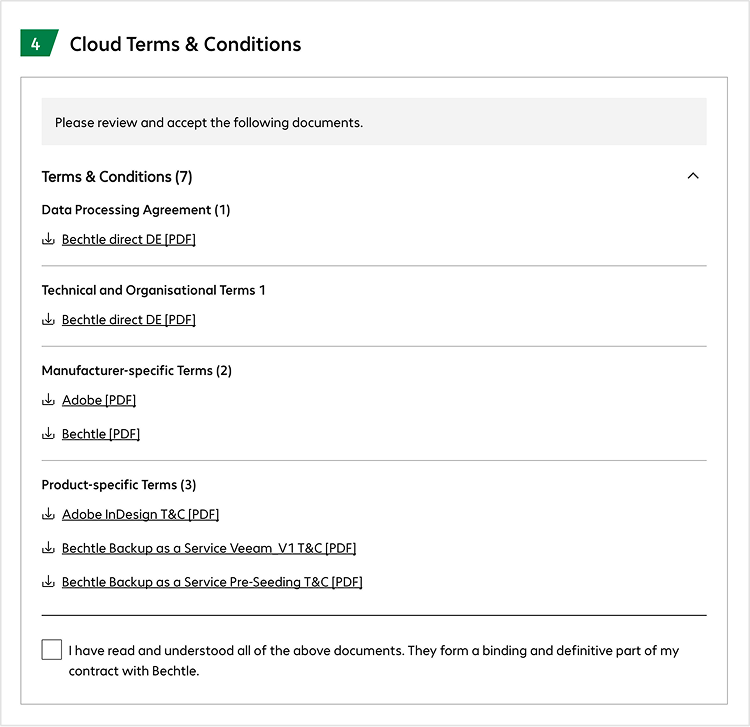
If your basket contains cloud products, the fourth step shows all required contract documents. You can open and review them before agreeing to the terms.
Cloud products require explicit acceptance of the terms and conditions. You can only continue with the checkout process after confirming you have accepted them to ensure all legal requirements are met.
Checkout Step 4 – Cloud terms and conditions
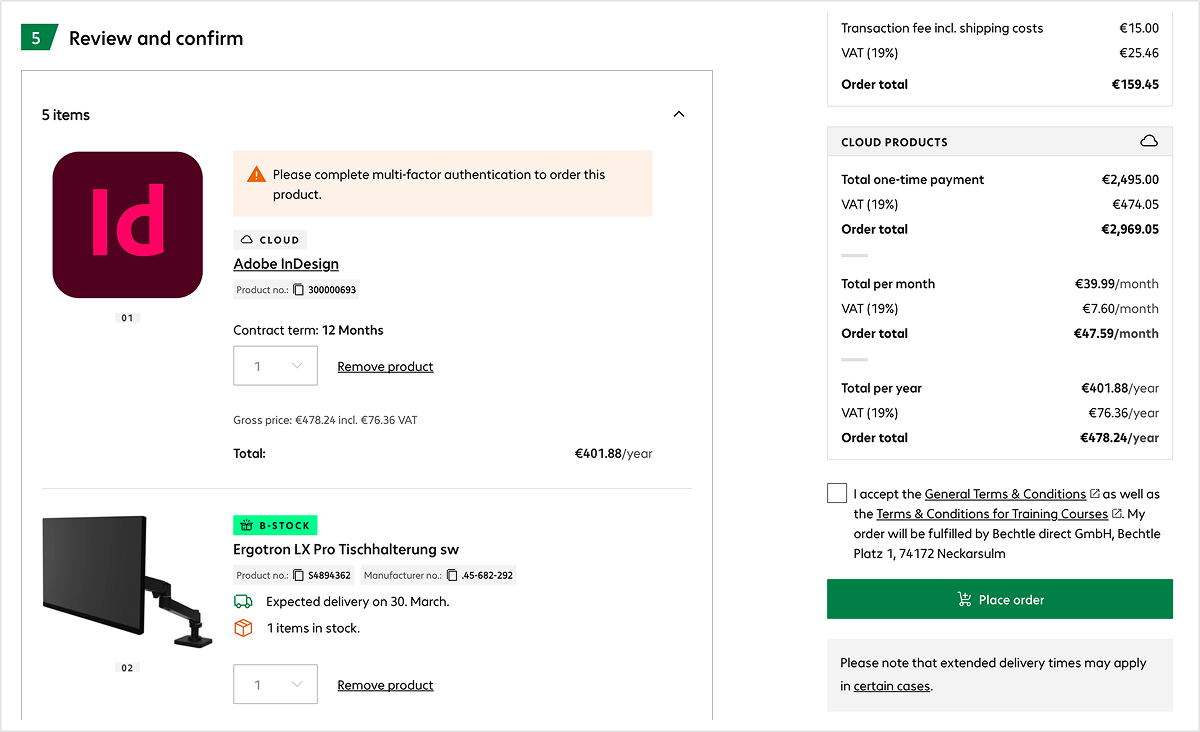
Before placing your order, you see a complete overview of all products, quantities, prices and contract terms. Your invoice address, shipping address, payment method and order details are shown further up the page if you want to review them again.
After reviewing your information, confirm the Terms and Conditions and submit your order. Any missing details are highlighted so you can correct them before sending the order.
Checkout Step 5 – Review and confirm
After completing your order, you will see the order confirmation page. The order numbers for standard products, cloud products and training courses appear in separate sections. You will also see information about what happens next.
The right‑hand side shows your products with their order details and a full cost breakdown. The order overview lists standard products, cloud products and training courses along with their net price, tax and total amount. Cloud products are listed with their invoice interval.
Get help from our virtual assistant or get in touch with your account manager.