



Windows Autopilot

Windows Autopilot
with Microsoft Surface.

Windows Autopilot makes it easy to set up and preconfigure new Surface devices—ready to use right out of the box. It also supports resetting, repurposing and recovering devices. This gives your IT team the benefit of zero-touch management, a streamlined service experience and other advantages that simplify everyday operations. 

Windows Autopilot
Classic deployment – the old way.


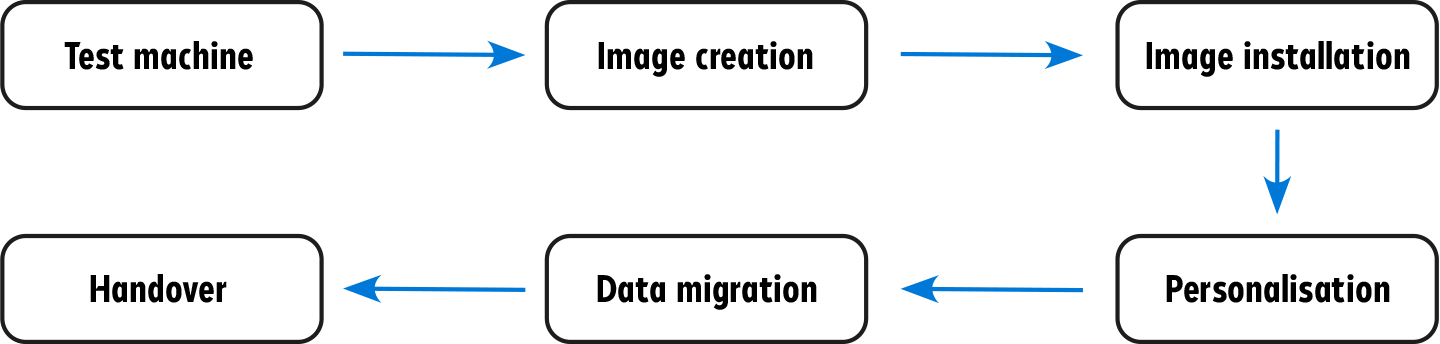
Traditional deployment starts with creating an image of the Windows operating system, which may be enhanced with specific updates, software and individual configurations. This image is then rolled out across existing devices and also serves as the foundation for provisioning new PCs—whether handled by an in-house IT team or by an external service provider.

Windows Autopilot

Each PC is unpacked and added to the client management tool, usually Microsoft System Center Configuration Manager. They’re then set up in the installation line and preloaded with the custom image. Once imaging is complete, the PCs are moved to the employees’ desks for final setup. From image creation to final setup, the entire process is time-consuming and labour-intensive.

Windows Autopilot
Modern deployment – The new way forward.


Requirements:

  • Microsoft Entra ID P1 or P2
  • Microsoft Intune as an MDM system
  • Windows 10 or Windows 11 Pro, Enterprise or Education
  • Internet access
Windows Autopilot

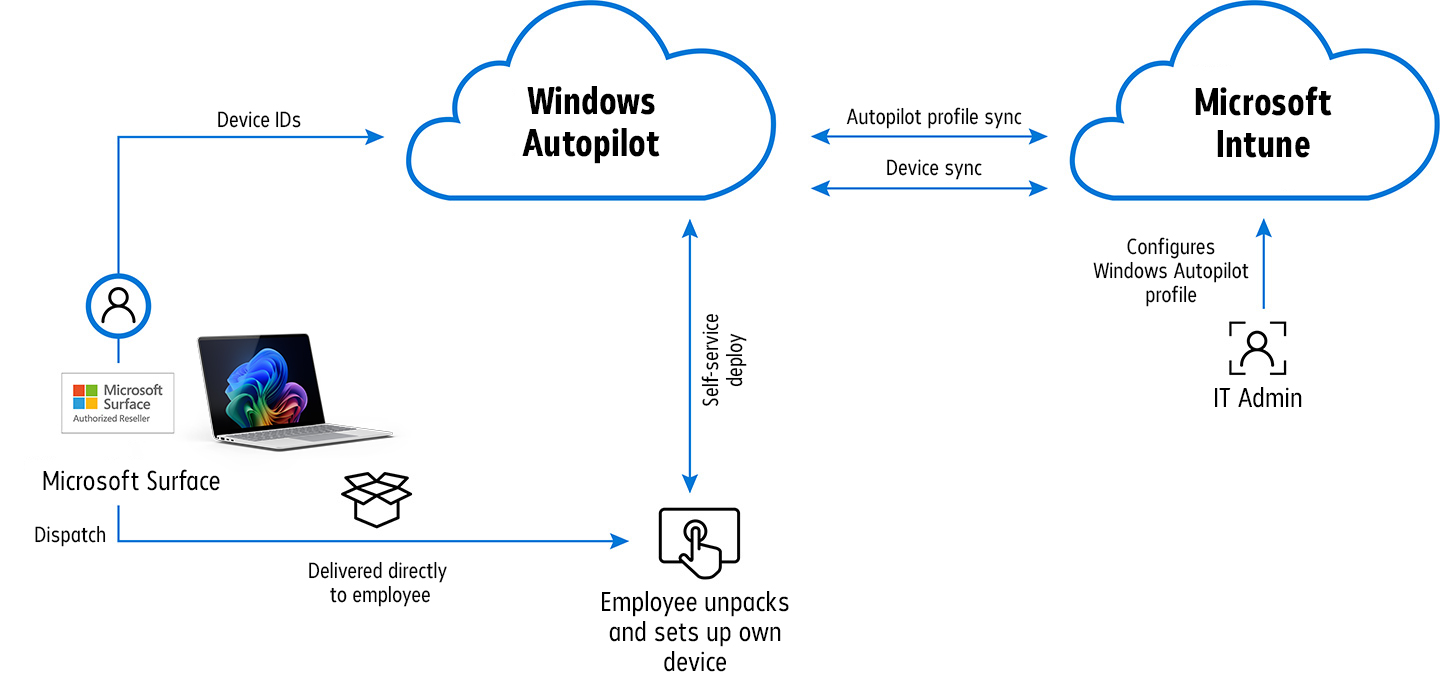
Windows Autopilot is a toolset built on Microsoft Intune and Entra ID that enables IT administrators to configure devices remotely—without ever physically handling them. Using Autopilot profiles, organisations can define Out-of-the-Box Experience (OOBE) settings for features like Cortana and OneDrive, as well as privacy, geolocation and licensing options.


It’s also possible to prevent the creation of local administrator accounts. As part of Bechtle’s provisioning service, we upload the hardware IDs of Surface devices you purchase to your tenant via the Microsoft Partner Portal to register them for Autopilot deployment. From there, they can be assigned to Autopilot profiles—and if needed, even linked to specific users.


The big advantage:

Devices you order from Bechtle can be shipped directly to your employees, preconfigured and ready to use. No need to create or customise an image, unpack and configure the device internally, or hand it over in person. Bechtle’s Autopilot-based provisioning service streamlines the entire process—saving time, reducing effort and accelerating deployment.

The process.
Windows Autopilot
Once an employee receives their Surface and powers it on, they only need to perform a few simple steps:
  • Select keyboard layout and system language
  • Connect the device to the internet (via Wi-Fi or LAN)


As soon as the device is online, it checks whether it’s registered to a company. Because Bechtle has uploaded the device ID to your tenant, the Surface recognises that it belongs to the organisation. The user is then prompted to sign in with their company email address and password.


After login, the device is automatically registered in Entra ID and Microsoft Intune, and receives all assigned policies and software.
Windows Autopilot simplifies the entire lifecycle of Windows devices for IT teams and end users alike—from initial deployment to end-of-life.
The advantages of Windows Autopilot at a glance:
Clock delayed expired 1

Speeds up deployment, management and decommissioning of Surface devices

IT architecture 02

Reduces the infrastructure required to maintain devices

Satisfaction Icon

Delivers a seamless experience for all types of end users

Documents

Automatically registers Surface devices with MDM services such as Microsoft Intune.

Wifi Icon

Enables admins to remotely reset or reboot devices as needed

Mobile Icon

Allows you to create profile-based configuration groups that can be assigned to devices

Check

Everything from a single source—powered by Microsoft, delivered by Bechtle

Important information!

Since Windows 10 version 1809, Hybrid Azure AD Join—joining devices to both local Active Directory and Entra ID—has also been supported.

Want to find out more?

We’d be happy to hear from you—just get in touch.

Get in touch